The timer
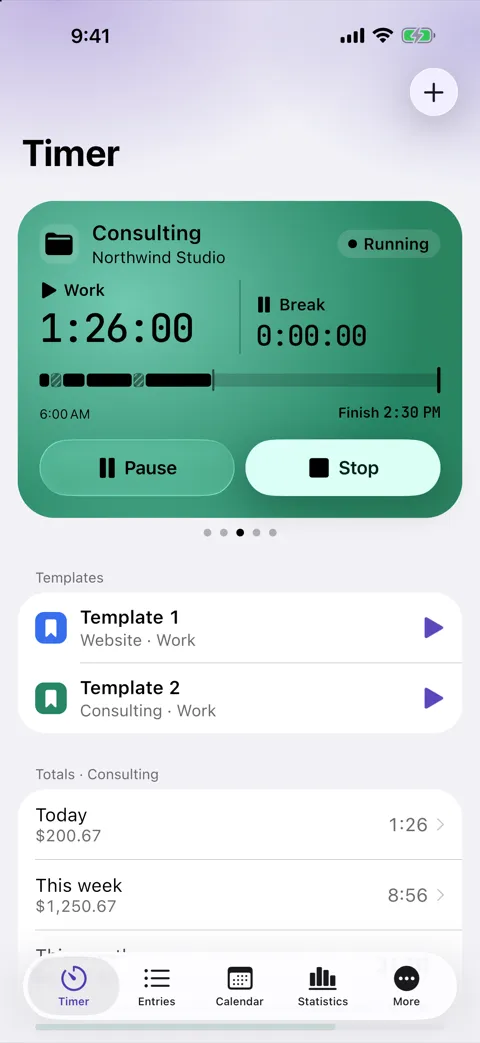
Start, pause and stop with one tap. The timer shows the day's progress and when your working day ends, and it starts with the right project: the one you chose, the one of the work location nearby or the one you used last.
Start a timer, take a break, stop – and at the end of the month turn your entries into an invoice, a timesheet or a work report. Offline and without an account.
Coming soon to the App Store and Google Play
For iPhone, iPad and Apple Watch, for Android phones and Wear OS watches.
From the first tap in the morning to the invoice at the end of the month – all in one app, on your device.
Start, pause and stop with one tap. The timer shows the day's progress and when your working day ends, and it starts with the right project: the one you chose, the one of the work location nearby or the one you used last.
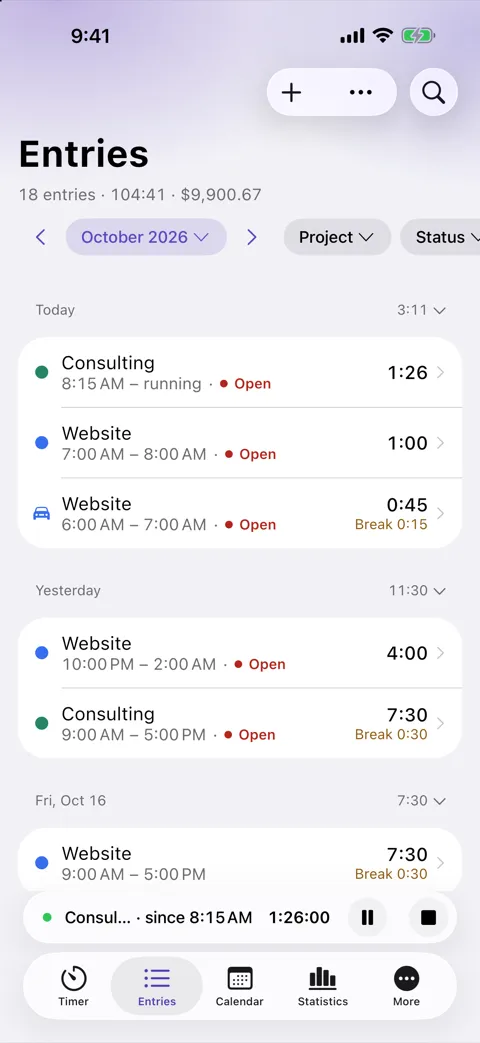
Add what you forgot, record absences such as vacation or sick days as all-day entries, and keep breaks, notes, tags, expenses, distances and a signature on each entry.
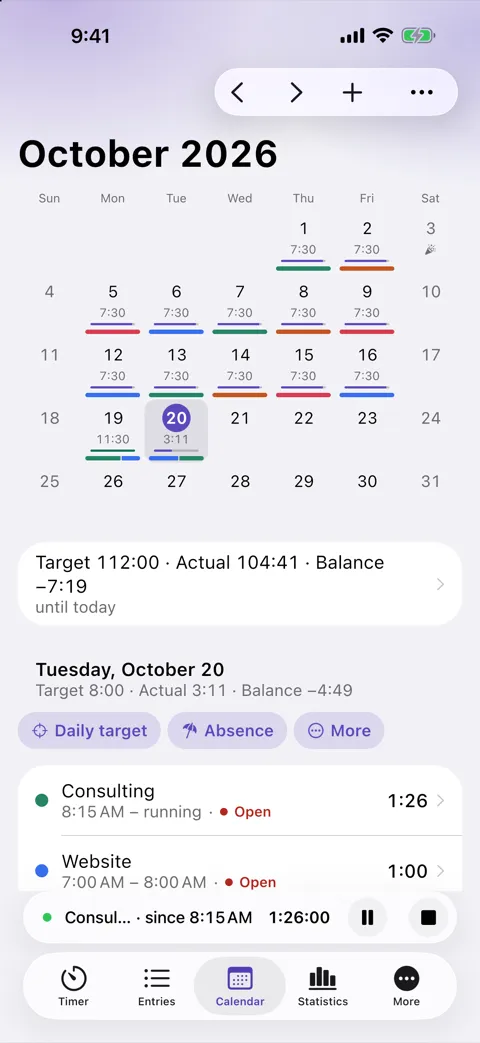
The month at a glance: each day's working time against its target, absences and public holidays.
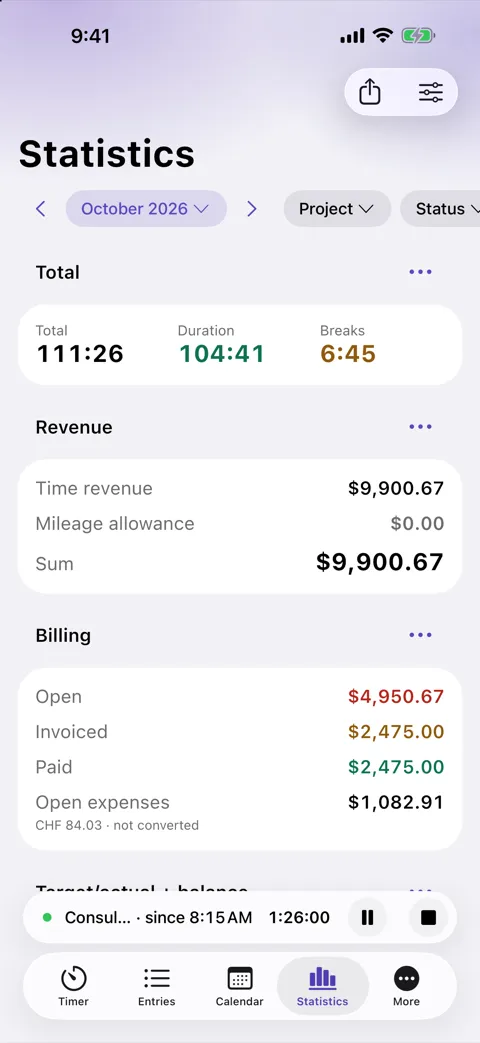
Duration, revenue, target and balance for any period – this week, last month or a range you choose – for all projects or just one.
Record expenses with their gross amount and tax rate, also in another currency with an exchange rate. Take a photo of the receipt or scan it, and the app reads the amount from it.
Projects with customers, an hourly rate and rates (e.g. Weekend · 150%), a budget and a project target with progress, to-dos per project. Target hours and balance show at once whether you are over or under your target.
A billing status per entry: Non-billable, Open, Invoiced, Paid. Invoiced entries are locked and their revenue is frozen. PDF invoices with ZUGFeRD, cancellation invoices, discounts and payment terms; timesheets and work reports as PDFs, in German or English.
Entries and expenses as CSV or Excel (XLSX) for your accounting, entries also as JSON to import again. Stopped entries go into your device calendar if you like.
A backup is one file with all data, attachments and settings. Automatic backups save one every day or every week into a folder you choose, encrypted with a password if you like.
The timer starts and stops when you arrive at or leave a work location, or with a tap on an NFC tag. A reminder tells you when you are at a work location and no timer is running.
Widgets show today's working time and start the timer with one tap. The running timer stays on the Lock Screen with pause and stop – on the iPhone as a Live Activity. Siri and Shortcuts on the iPhone, app shortcuts on Android.
On the Apple Watch and on Wear OS watches you start the timer from an entry template or a recent project, pause, resume and stop it, each with one tap, and see today's and this week's totals. Without the phone nearby the watch carries on and catches up later. On the watch face a complication shows the running timer, on Wear OS also a tile.
No account, no login, no server of ours. Your entries, customers and invoices stay on your device; a backup is a file that you keep yourself.
No. Timesheet Go needs no account, and it has no subscription and no in-app purchases. All features are included.
Only on your device. Timesheet Go has no account, no login and no cloud of its own. We collect no data and never see your entries, customers or invoices. Location, calendar and photos are not transferred to us; for addresses and maps the app uses the map service of Apple or Google (see the privacy policy).
On iPhone and iPad, with the Apple Watch as a remote for the timer, and on Android phones, with Wear OS watches as a remote. The watch needs the app on the paired phone.
In More → Back up and restore. Back up now saves a backup with all data, attachments and settings. Automatic backups put one into a folder you choose every day or every week – also in iCloud Drive or Google Drive if you like. Encrypt with password protects the backup file; without that password the backup cannot be restored, and there is no way to reset it.
Available in: Deutsch · English · Français · Español · Italiano · Nederlands · Polski · Português (Brasil)